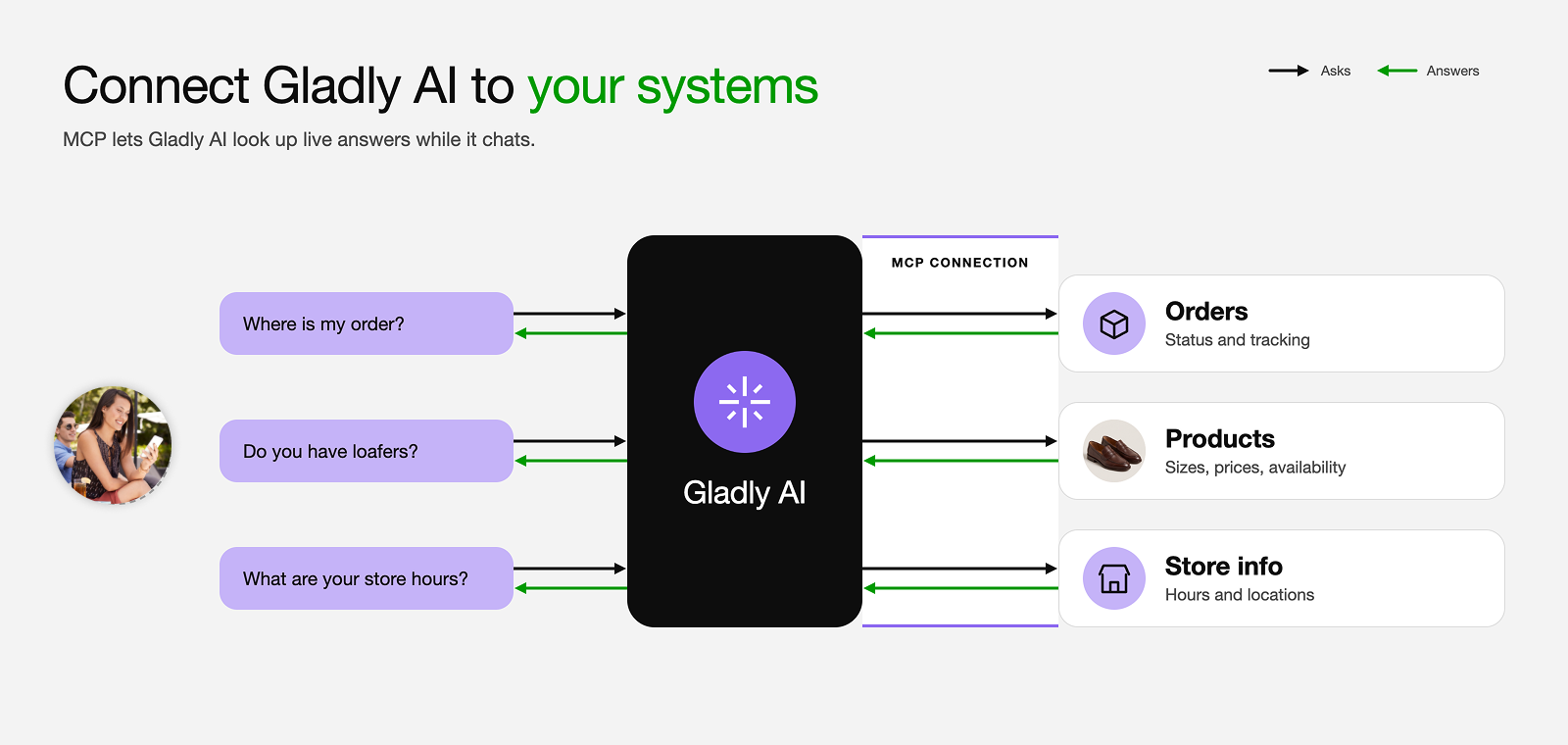
An MCP connection links Gladly AI to an external system so it can look up information or take action during a Customer Conversation. MCP (Model Context Protocol) is an open standard that lets AI systems discover and call the tools an external system offers. With an MCP connection, Gladly AI can check an order status, search a product catalog, or look up store hours while it helps a customer, using live data from your own systems.
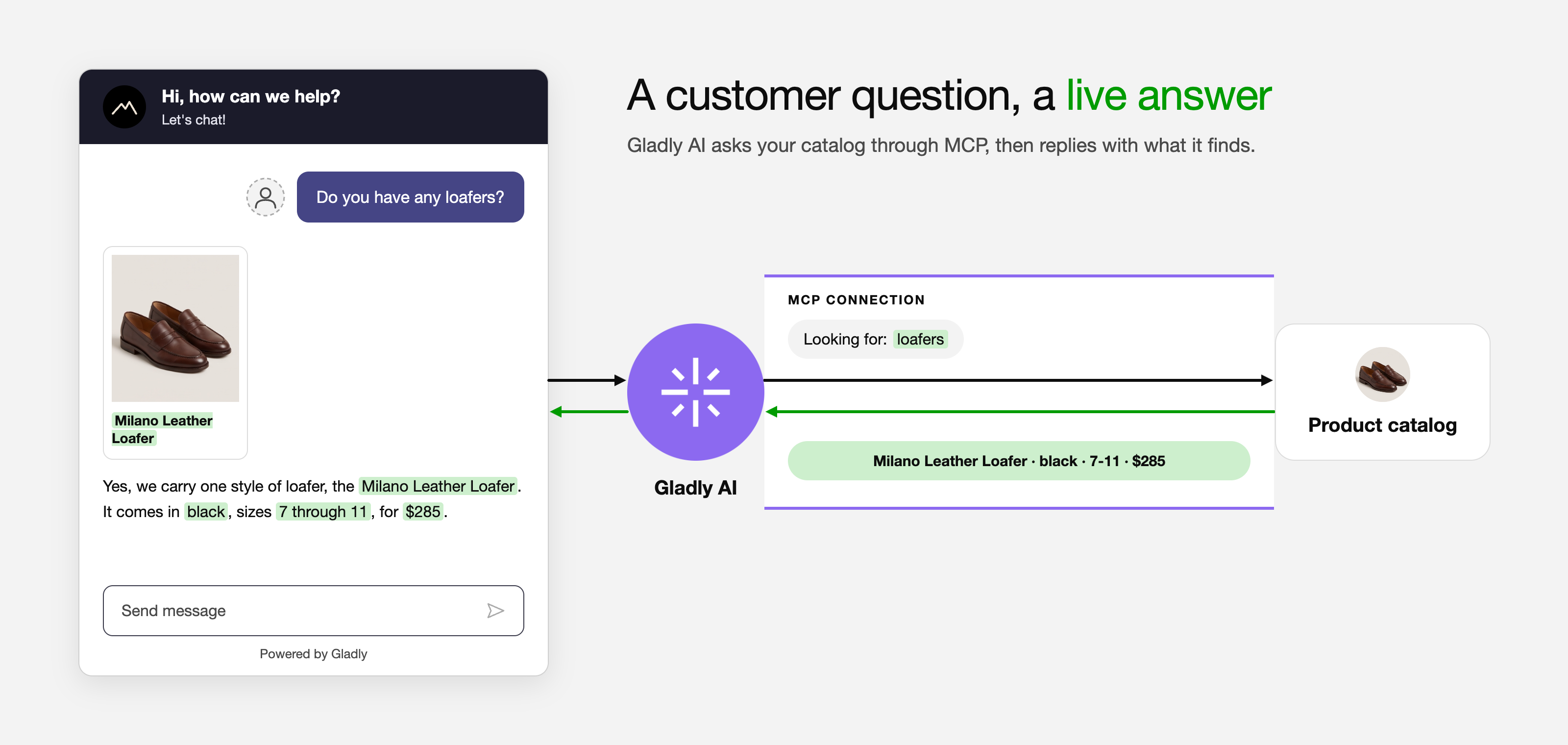
Instead of building a custom App Platform integration for every external system, you register an MCP server once. Gladly discovers the tools on that server automatically.
How MCP connections work
When a customer asks a question, Gladly AI decides whether one of your MCP tools can help. If it can, Gladly AI calls the tool on your MCP server, reads the response, and uses it to answer the customer.
For example, a customer asks, "Where is my order RT-1001?" Gladly AI calls an order lookup tool on your server, gets back the status, carrier, and tracking number, and shares them in its reply.
Servers, connections, and tools
Three terms describe how MCP fits together in Gladly:
Server: The external system that offers tools, identified by its URL. For example, an MCP server for your order management system.
Connection: How your org connects to a server. A connection has a name, the authentication details for the server, and an active or inactive status. You can create more than one connection to the same server, for example to use different credentials.
Tool: A single capability the server offers, such as
lookup_order_statusorsearch_products. Each tool has a description and the inputs it needs.
Where Gladly AI uses MCP tools
MCP tools reach Gladly AI only after you add them to a Guide or Skill. Adding a connection on its own doesn't change how Gladly AI responds.
In a Guide, you wrap an MCP tool in a Custom Action, then add that Action to a Guide section. The Custom Action calls the MCP tool as one of its steps, and you control what the Action collects from the customer and what it passes to the tool. MCP tools work alongside your other Actions, so a single Guide can use both.
See Set up MCP connections for the steps.
Authentication options
Gladly supports the following authentication types for an MCP server:
None
Bearer Token
API Key
OAuth (Authorization Code)
OAuth (Client Credentials)
Use the type your server requires. If you're not sure which one to use, ask the team that manages the server.
Manage MCP connections
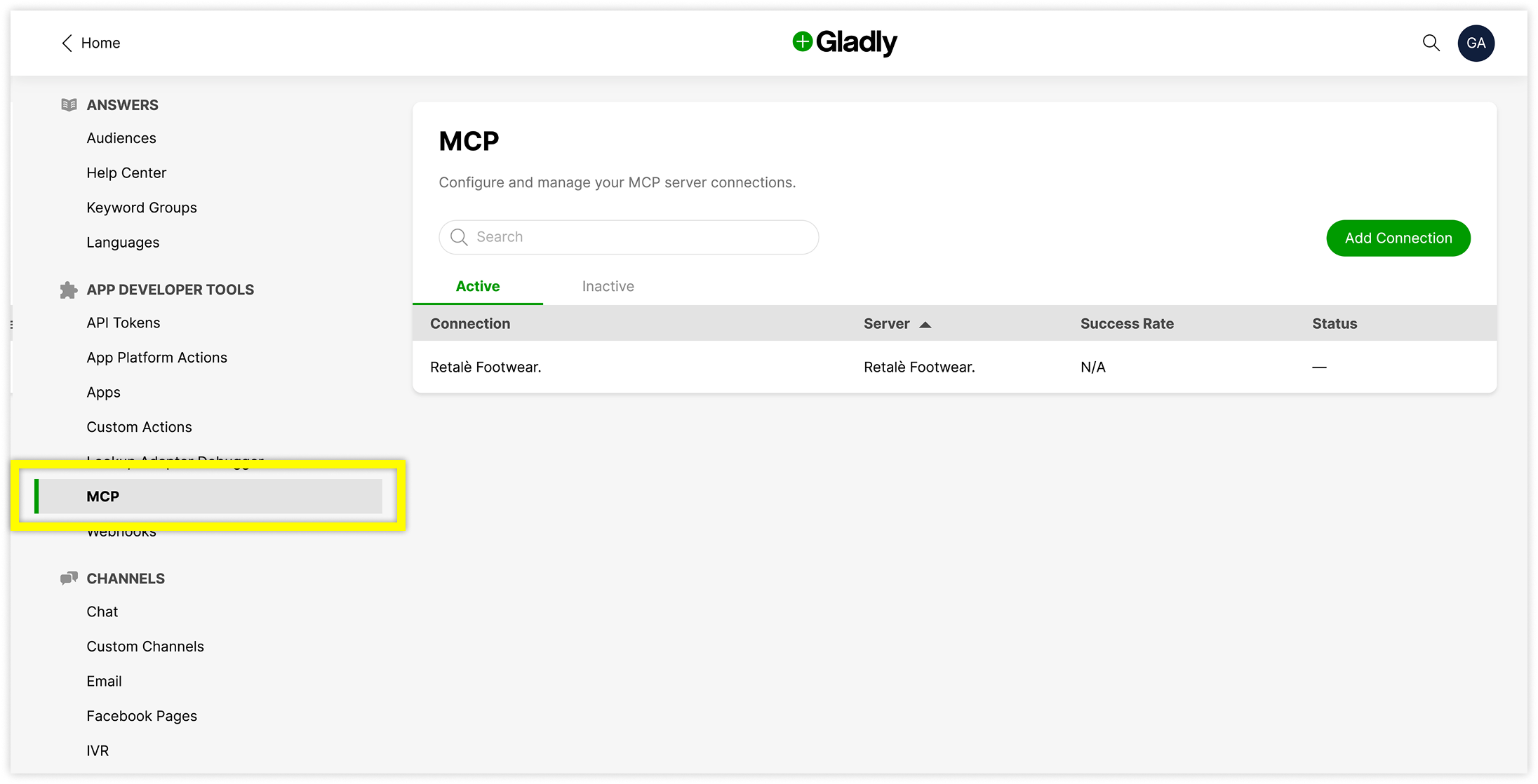
You manage connections from Settings, under App Developer Tools, on the MCP page. From there you can:
Add a connection to a new or existing server.
Test a connection to confirm Gladly can reach the server and find its tools.
Run a tool on its own to see what it returns.
View tool call logs to see each request and response.
Edit, deactivate, or delete a connection.
See Set up MCP connections for step-by-step instructions.
Things to know
Guardrails still apply. Replies that use MCP tool data pass the same reply guardrails as any other Gladly AI reply. Gladly doesn't screen the tool's output itself, so make sure your server returns only information you're comfortable sharing with customers.
Tools only. MCP connections support tools. Resources and prompts offered by an MCP server aren't available.
If a server is unreachable. Gladly drops only that server's tools for that turn, and the rest of the conversation continues.
Everything is logged. Each tool call, including test runs, appears in the connection's tool call logs. Tool calls also appear in conversation history and action logs.