Connect Claude to your Gladly organization so you can investigate sessions, improve Guides and Workflows, and test changes in plain English. Setup takes about 5 minutes and doesn't require any downloads. To learn what the Gladly MCP for Claude does, see What is the Gladly MCP for Claude?
Your Claude screens may look different Claude updates its interface often, so menu names, button labels, and screens may not match the steps and images in this article. The steps below describe what to look for, not exactly where to click. If you get stuck, search Claude's Settings for Plugins or Connectors, or see Anthropic's Claude Help Center.
MCP is on for your whole organization Gladly turns MCP on for your organization as a whole, not person by person. Claude gets the same access as the person who connects, so only give eligible roles to people you trust. See Review security and data for the Gladly MCP for Claude.
Your connection expires after a few days without use When that happens, Claude asks you to reconnect. Find your Gladly connector in Claude, select Connect, and sign in to Gladly again. Your setup stays the same.
Two different addresses Setup uses two addresses, and each goes in a different place. The Gladly marketplace address is for adding the Gladly plugin. Your personal connector address is for adding the connector. If you paste the marketplace address where Claude asks for a connector address, Claude can't find the server.
Before you begin
Make sure all of the following are true:
Gladly has enabled MCP access for your organization. If you're not sure, ask your Gladly account team.
You have an eligible role in Gladly: Team Manager, Compliance Admin, or Admin, or a custom role with the Manage Gladly AI, View Gladly AI, or Review Gladly AI permission. Other roles can't connect.
You use Claude Desktop or claude.ai on a paid plan, and your version allows plugins and custom connectors. If you can't add them, ask your Claude administrator.
You know the address you use to sign in to Gladly, for example
acme.us-1.gladly.com.
Add the Gladly plugin
The Gladly plugin adds the /gladly-setup command, which builds your personal connector address and checks your connection. The connector you add next is what gives Claude access to Gladly.
In Claude, find where you add plugins. Look for Plugins in the sidebar or in Settings.
Add a marketplace and enter the Gladly marketplace address:
https://github.com/gladly/claude-pluginConfirm the marketplace, then add the Gladly plugin from the list. Keep automatic syncing turned on so you get plugin updates as they're released.
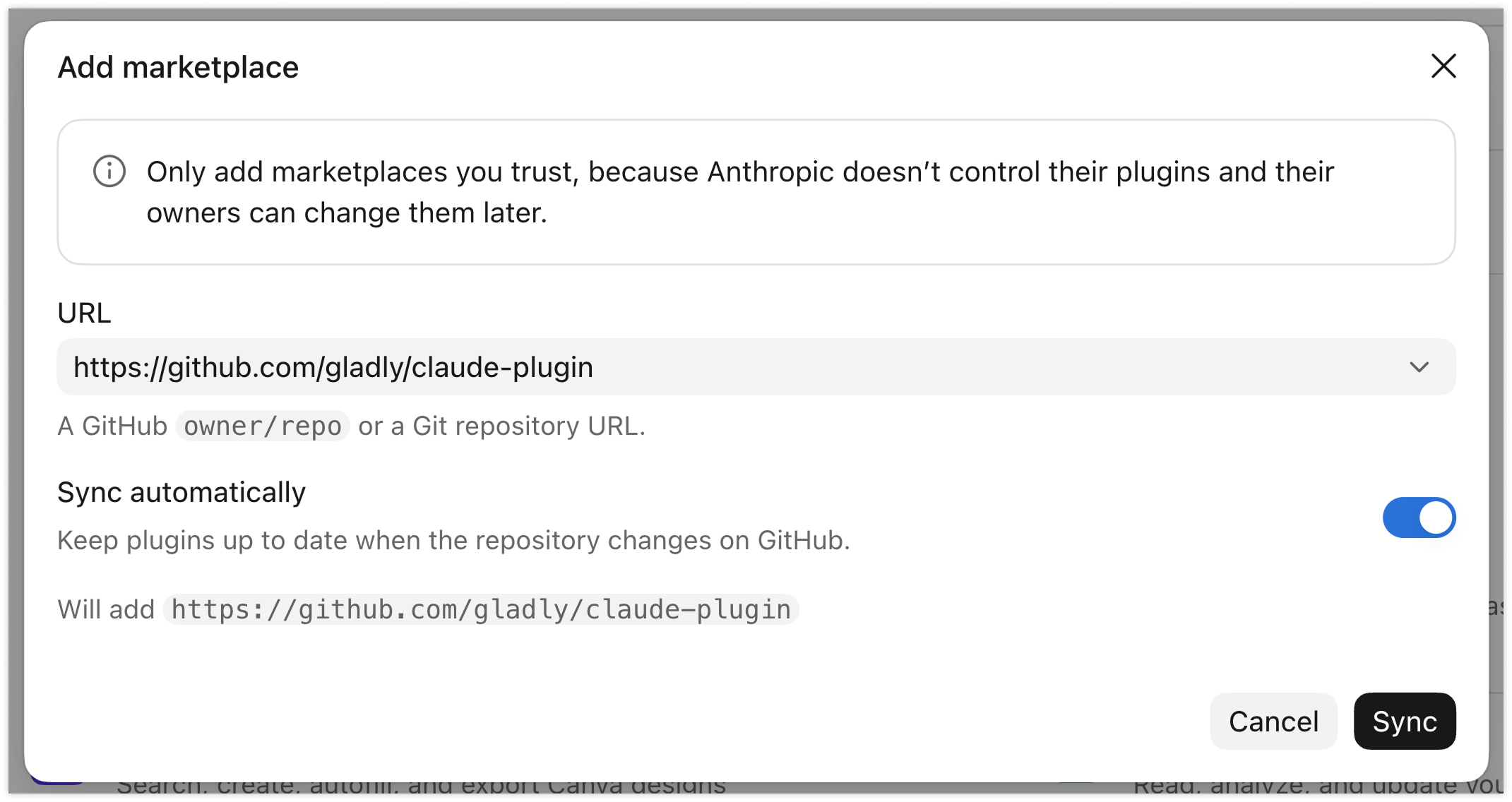
Start a new chat after you add the plugin The /gladly-setup command isn't available in chats that were open before you added the plugin. Start a new chat before you continue.
Get your connector address
In a new chat, type
/gladly-setup, or ask Claude to "set up Gladly."Enter the address you use to sign in to Gladly. Claude builds your personal connector address.
You enter
Claude gives you
acme.us-1.gladly.comhttps://mcp.us-1.gladly.com/acme/mcpIf you sign in on an older address without the region, such as acme.gladly.com, enter that instead. Both work.
Add the connector and sign in
In Claude, find where you add connectors. Look for Connectors in Settings or on the Plugins page.
Add a custom connector. Give it a name you'll recognize, such as Gladly, and paste your connector address.
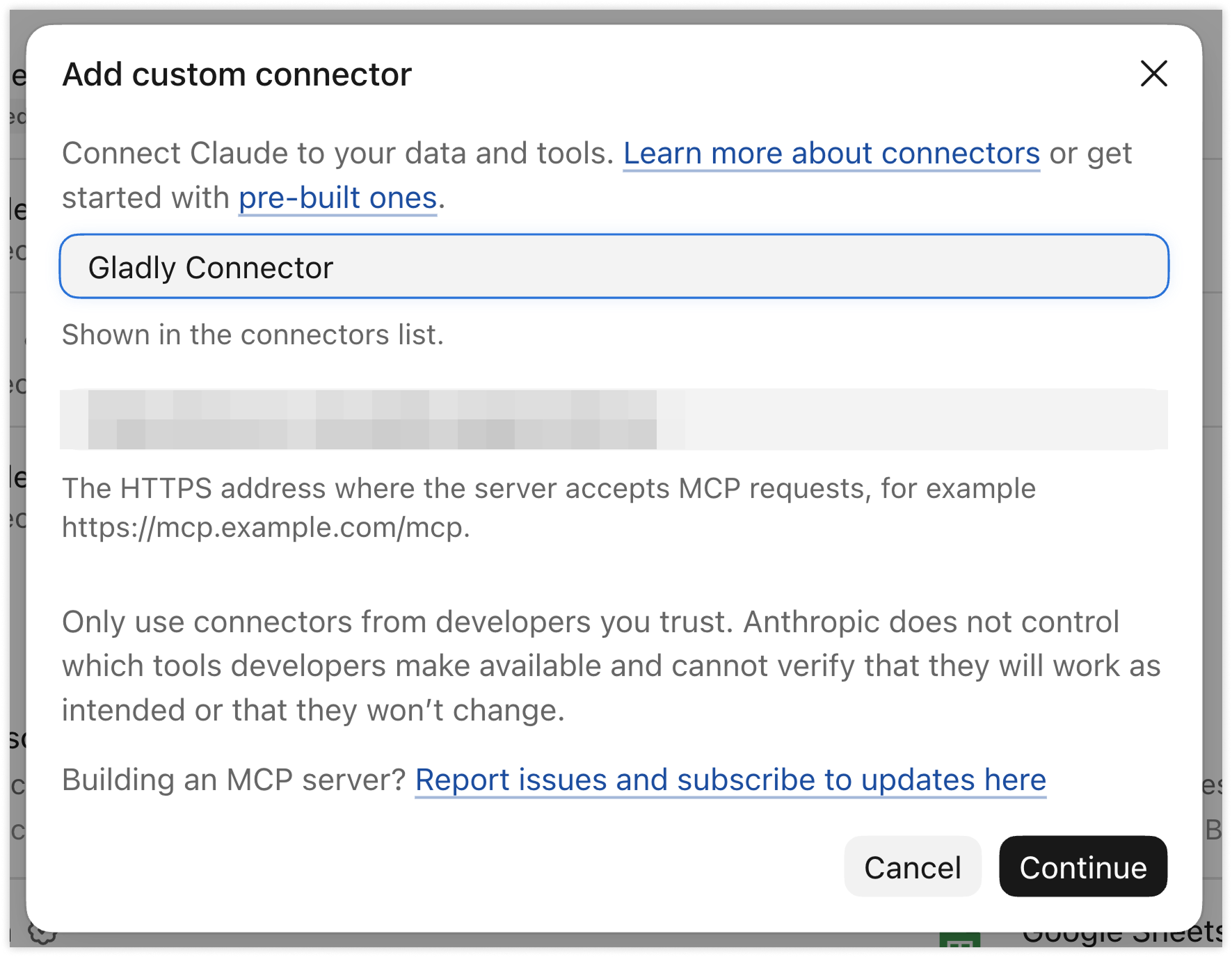
Keep the settings Claude detects. You don't need to enter any headers or client details.
Select Connect. Gladly opens in your browser. Sign in if you're asked.
Review what Claude is asking to do, then select Allow access.
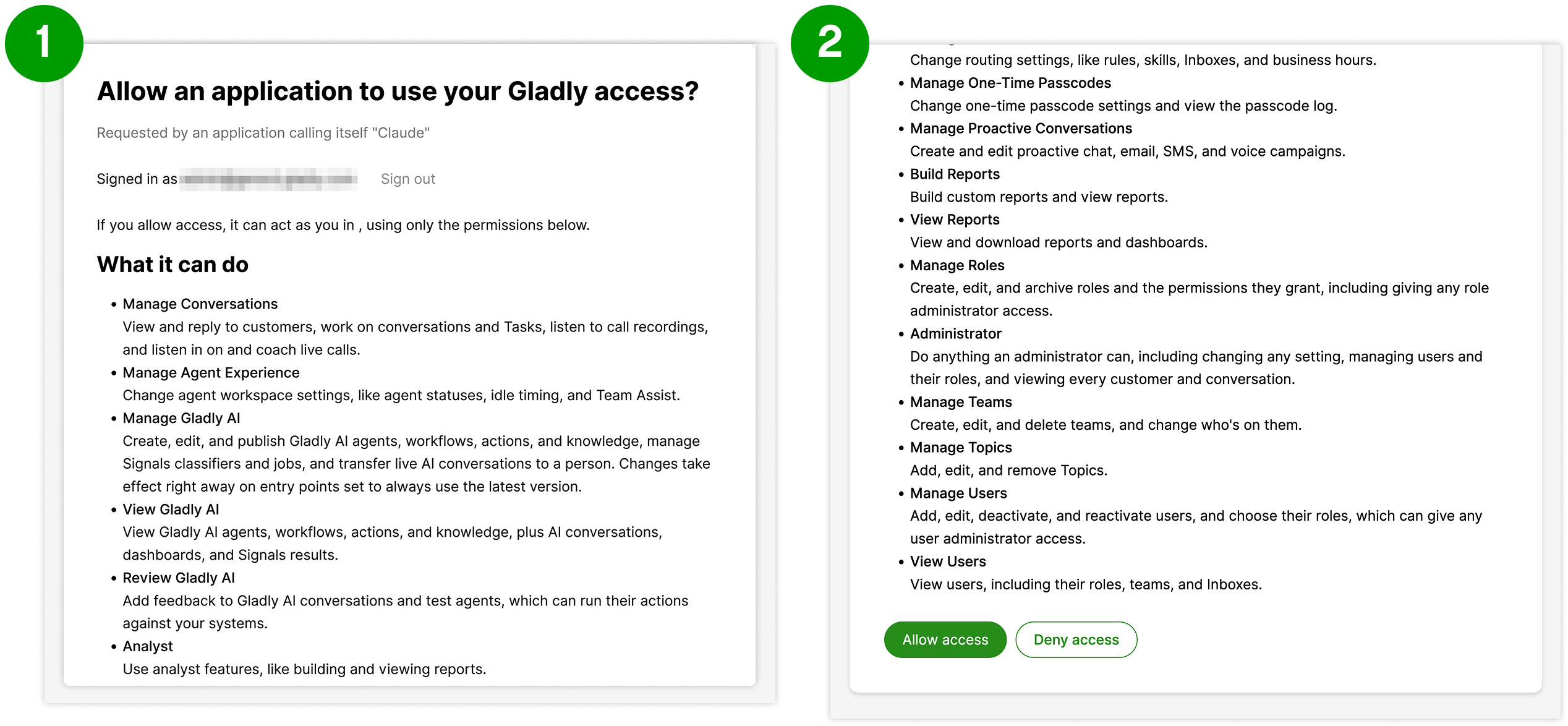
Confirm that Claude is connected
In a new chat, make sure the Gladly connector is turned on. Look for the connector toggle near the message box, and do this in each new chat.
Run
/gladly-setupagain, or ask Claude, "Am I connected to Gladly?" Claude should name your organization. Confirm that it's the right one.
If Gladly isn't connected, Claude tells you. See Troubleshoot the Gladly MCP for Claude.
.png?sv=2026-02-06&spr=https&st=2026-11-19T06%3A02%3A35Z&se=2026-11-19T06%3A15%3A35Z&sr=b&sp=r&sig=BRrBdq4TnQDnV7lyA39FqbLbimzJlH7v%2F1l2KXf5HIE%3D)
Once you're connected, see Use the Gladly MCP for Claude for example prompts.
Disconnect Claude from Gladly
You can disconnect for yourself, or a Gladly administrator can disconnect access for everyone in your organization.
Disconnect for yourself In Claude, find your connectors and remove the Gladly connector.
Disconnect for everyone in your organization A Gladly administrator opens Connected Applications in Gladly and disconnects the application. Access ends within seconds.